
Send by email
Compress video for email
Gmail and Outlook.com accept 25 MB of attachments. iCloud Mail allows 20 MB per message (checked September 2026). The email page opens with 25 MB set.
Compress video for emailNo sign-up. No upload. No size limit.
Nothing is uploaded — the file is compressed on your device.
Your browser reads the file, your device's video encoder compresses it, and the result is saved on your device.
Drag the size bar or tap one of four buttons: 10%, 30%, 50% or 70% of the original size. Click the After size to type an exact number of MB. Screen size sets the resolution, and Advanced adds frame rate, format and audio.
The file is read from your disk, compressed on your device and saved back to your disk. No part of it is sent to a server.
Opens MP4, MOV, WebM, MKV, TS, M2TS and MTS. The output is written to disk as it is produced, so files of several GB work.
Encoding uses the video encoder in your computer or phone. Only formats it can encode are offered, and the screen is kept awake while it runs.
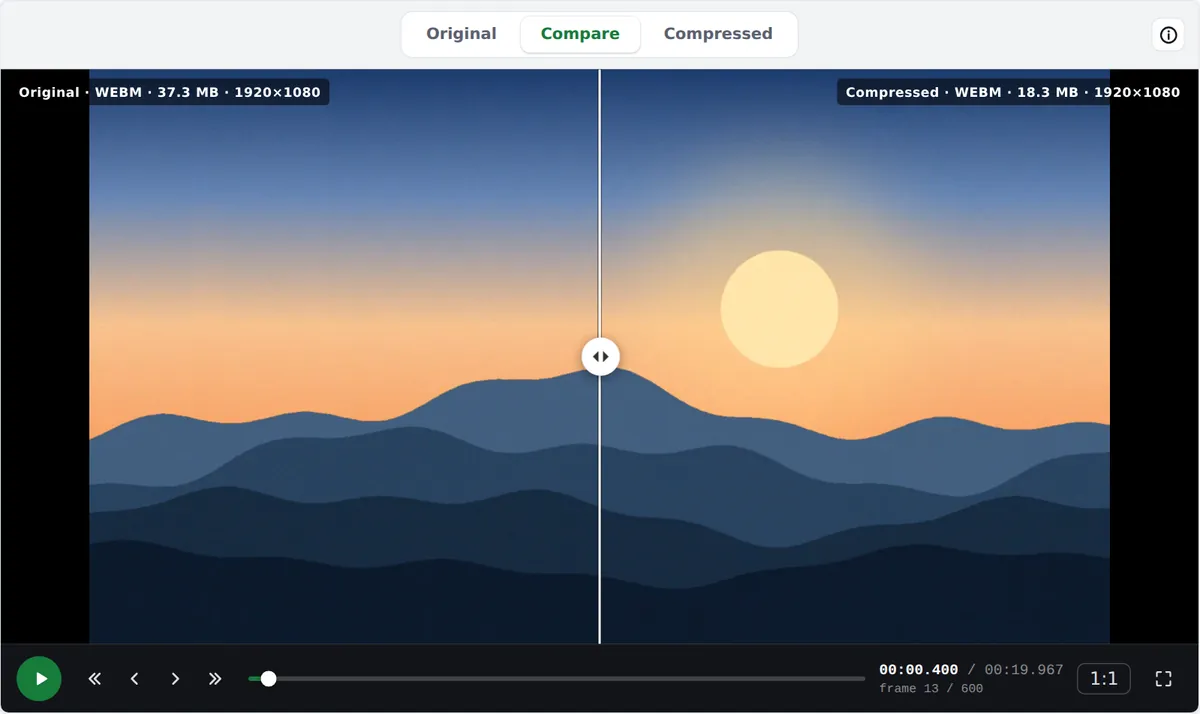
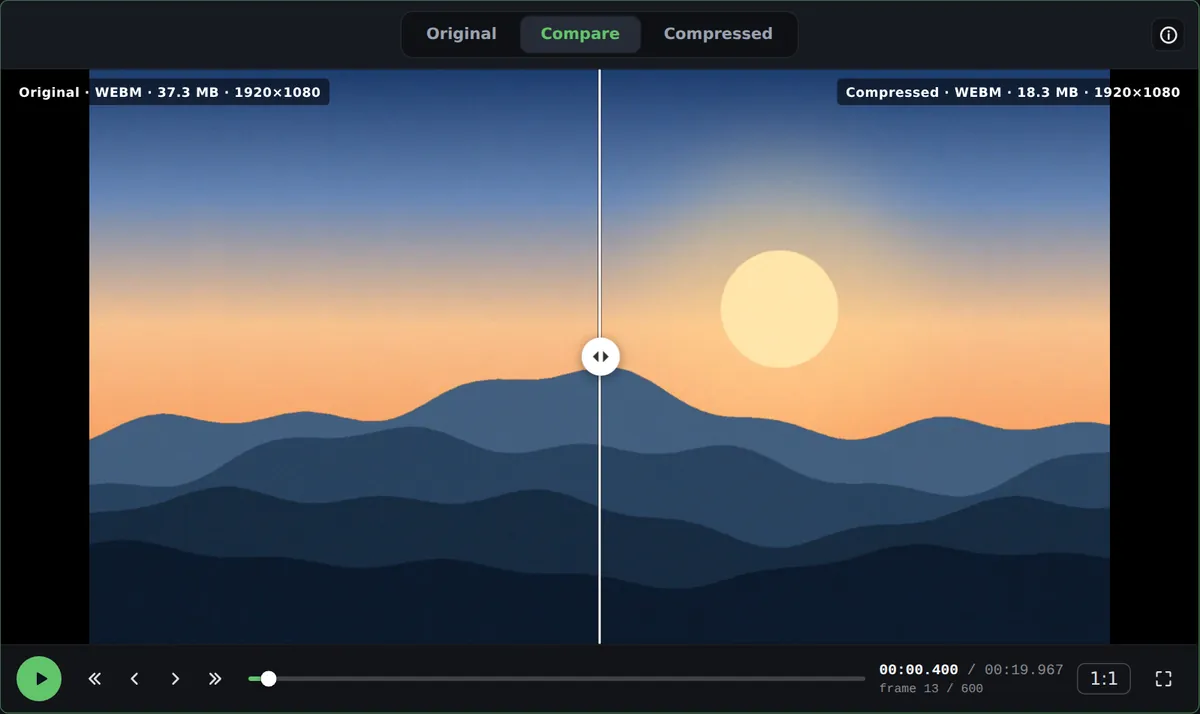
After compressing, the Compare tab shows the original and the result on one frame. Drag the slider, step 1 or 10 frames, or view at 1:1.
The WhatsApp page opens at 16 MB and the Discord page at 20 MB.
Nothing is uploaded, so there is no upload or queue to wait for.
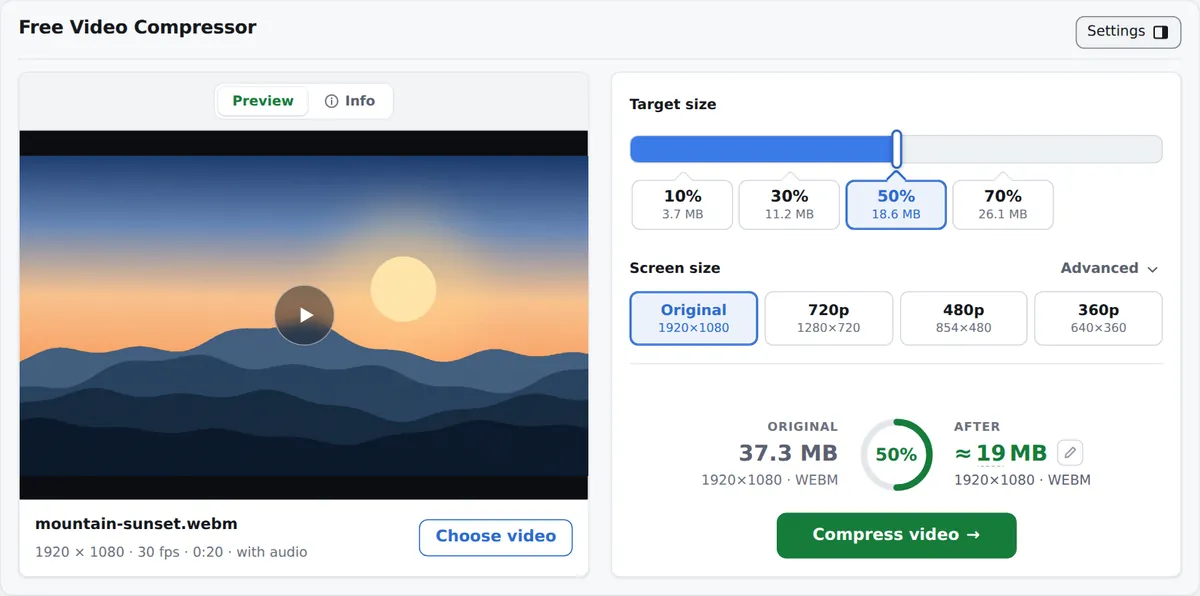
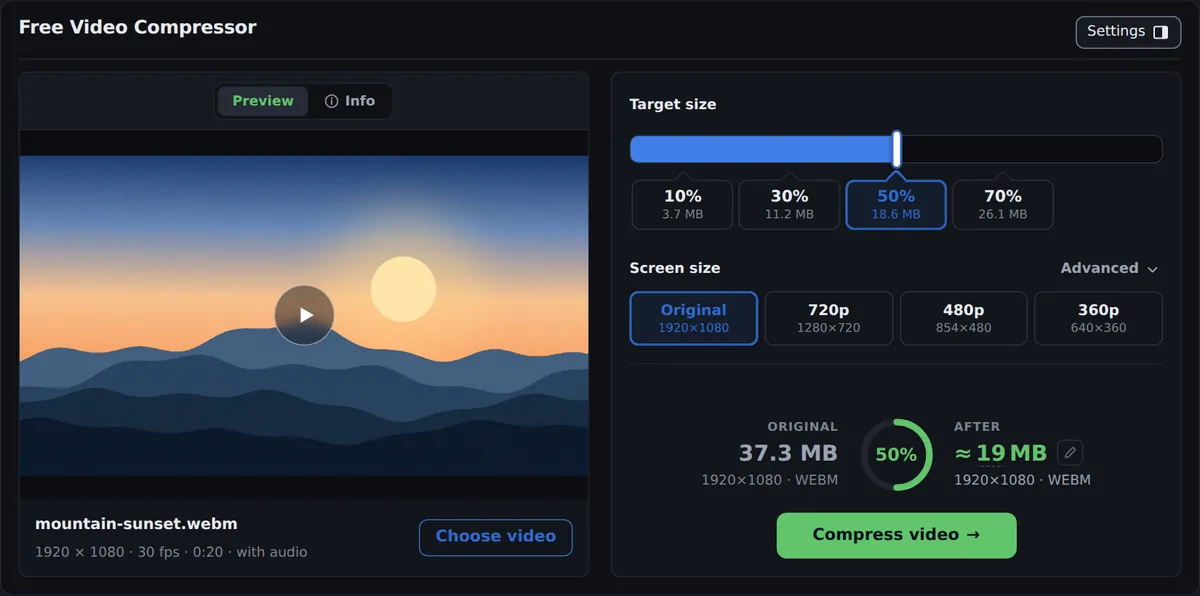
Drag an MP4, MOV, WebM or MKV onto the page, or click to browse. The file opens on your device and you see its size, resolution, length and a preview frame.
Tap 70%, 50%, 30% or 10%. Each button shows the size it gives. For an exact size, click the After number and type it in MB.
Press Compress video. A progress window shows the percentage and the time left. Check the result in the Compare tab, then download it.
Most compression is about a limit somewhere else. Three of these have their own page with the size preset.
Gmail and Outlook.com accept 25 MB of attachments. iCloud Mail allows 20 MB per message (checked September 2026). The email page opens with 25 MB set.
Compress video for emailWithout Nitro, Discord takes 20 MB per upload (raised from 10 MB on September 8, 2026). The Discord page presets 20 MB and aims just under it. If a long clip needs it, the panel lowers the resolution by itself.
Compress video for DiscordWhatsApp limits videos sent in a chat to 16 MB and re-compresses them. Compress to 16 MB first and you choose the resolution.
Compress video for WhatsAppThe 50% button halves each file. For 4K footage, picking 1080p under Screen size is another option. The original is never changed, so delete it only after checking the result.
A 145 MB phone video: 1080p, 30 fps, 1 minute 40 seconds. Each button sets the result as a share of the original size.
The differences come from one decision: never sending the file anywhere.
| freecompress.video | Typical online compressor | |
|---|---|---|
| Your video is uploaded | Never | Always |
| Free file size limit | None | 500 MB to 1 GB on common services |
| Waiting before compression starts | None | Upload time, plus a queue on some free tiers |
| Watermark on free tier | No | On some services |
| Works offline | Yes, once the page has loaded | No |
| Files over the free limit | Free | Paid upgrade |
Upload-based compressors need the whole file on their server before they start, and many cap free files at 500 MB or 1 GB. This one sends nothing. Your browser decodes the video, and your device's own video encoder compresses it, the same hardware your phone or computer uses to record. There is no queue, no credits and nothing to sign in to.
Because the file stays on your machine, a meeting recording or a family video never passes through a third party. You can check this yourself: open your browser's network panel while a compression runs and look for a request carrying your video. There is none. Once the page has loaded, it also works with no network connection.
Drop a video onto the page or click to choose one. In the settings panel, Target size is a bar you can drag left or right, with four buttons under it at 10%, 30%, 50% and 70%. The filled part of the bar is the share of the original size that remains. After a video is loaded, each button also shows the size it gives. Screen size lists Original with its resolution, then the lower steps (1080p down to 240p) that are below your source. Below that, the estimate row shows the original size, a ring with the percentage that remains, and the After size. Click the After size (the pencil icon) to type an exact size in MB.
Press Compress video. A progress window shows the percentage, elapsed and remaining time, and a Stop button. When it finishes, the Original, Compare and After tabs let you check the result before you press Download. If you close the page before downloading, the last result stays in your browser for up to 7 days. To cut the video shorter as well, use Trim Video ↗.
Advanced, next to the Screen size heading, opens a row of three menus. Frame rate offers Original, 60 fps or 30 fps. At a fixed target size, 30 fps leaves more bits for each frame. Format offers MP4 (H.264), MP4 · HEVC, WebM (VP9) and WebM · AV1, but only the ones this browser can encode on this device. MP4 (H.264) is the default and plays in the most places.
Audio is kept as is by default. You can also re-encode it at 128 or 64 kbps, or remove it. Audio with more than two channels (5.1 and similar) is mixed down to stereo when re-encoded, and only the first audio track is kept.
When a size can only be reached at a lower resolution, the panel picks that resolution itself and marks the row with a dashed amber frame. It then shows "Resolution set to W × H to reach this size." If that is still not enough, it may lower the audio to 64 kbps and say so. When the estimate is 97% of the original or more, it shows "At this setting the file stays about the same size."
A video file's size is close to bitrate × duration. Bitrate is how many bits the encoder may spend per second. With fewer bits, it saves on detail in flat areas and fast motion first, and at very low bitrates you see blocks and smearing. Resolution and frame rate set how many pixels there are to describe each second, so a lower screen size leaves more bits per pixel.
For each resolution the compressor has a minimum bits-per-pixel. If your target size falls below it, the panel moves to the next lower screen size. The encoder writes a keyframe every two seconds, so the result seeks quickly in any player.
Input: MP4, MOV, WebM, MKV, TS, M2TS and MTS. AVI, WMV, FLV and other older formats are not supported. Output is MP4 or WebM. The original file is never changed; the result is a new file, written to disk as it is produced, so files of several GB work.
HEVC (H.265) input can only be read on devices with a hardware HEVC decoder, because Chrome has no software HEVC decoder. On some Macs, Chrome stops decoding certain H.264 files partway through. The page then restarts with software decoding, replaces any frames that still cannot be decoded with the previous frame, and states how many were replaced. If the browser cannot decode the audio track partway through, compression restarts and keeps the original audio as is, with a note under the result.
Yes. There is no account and no watermark, and compressing a video is free at any size. The page shows ads.
Nowhere. Your browser reads it from your disk, your device's video encoder compresses it, and the result is saved to your disk. No part of the file is sent to a server. You can confirm this in your browser's network panel while a compression runs.
Compression removes information, and the smaller the target, the more is removed. Before downloading, open the Compare tab: drag the slider across the frame, step 1 or 10 frames, and view at 1:1 to see the difference at full resolution.
This tool sets no limit. Files of several GB work because the output is written to disk as it is produced.
It depends on your device and on the video's length and resolution. The progress window shows elapsed and remaining time, and the screen is kept awake while it runs.
MP4 (H.264) is the default and opens in the most players and apps. HEVC and AV1 usually keep more detail at the same size, but some older devices cannot play them. The Format menu lists only what your browser can encode on this device.
Yes. Click the After size, type the number and press Compress video. The bitrate is calculated for 98.5% of the size you type, so the file is aimed 1.5% under it to leave room for the container. There are also pages that open with the size set: compress to 8 MB and compress to 25 MB. For Discord, whose free limit is now 20 MB (Discord patch notes, September 8, 2026), use compress for Discord.
Yes, in a current mobile browser. Only the formats your phone can encode are offered, and the screen stays on during compression.
Most often the file is HEVC (H.265) and the device has no hardware HEVC decoder. Chrome has no software decoder for HEVC. A file in AVI, WMV or FLV shows "This file format is not supported." instead; convert it to MP4 first.
By default it is kept as is. If you re-encode it, 5.1 and other multichannel audio is mixed down to stereo. Only the first audio track is kept.
Drop a file at the top of the page. The panel shows the size you will get before you start.
Trim, remove audio, extract MP3, rotate or save a frame on works.tools. Those tools also run in your browser.